
How to write a Subquery/Subsquid Query
KodaDot currently uses two types of indexers, magick by Subquery and rubick by SubSquid. You can use this tutorial as a way to write queries for both indexers, however there are minimal differences that you should keep track of!
Keep in mind that there are some query variable differences (i.e 'first' in Subquery and 'limit' in SubSquid) between Subquery and Subsquid. When writing a query, make sure you are using variables intended for your indexer. For learning purposes, we will use the SubSquid playground.
We'll go through the components of a query: the query itself, the parameters, and query variables.
The query itself is what you're ultimately fetching, at the end of intializing your query variables, your query should be able to fetch and return the information you specifically asked for.
The parameters are what helps the query find what you need. If one of your parameters is id, then the query will look for id's.
The query variables are what you initialize (for example, the address of your own account) and where the query goes to, to begin fetching information.
Let's go through examples to show you how this works. If you'd like to understand how general querying works, we have an article for that as well. In the meantime, these will be queries specific to Subquery/SubSquid.
Rule of thumb, name your queries as you would functions- be descriptive so that you don’t confuse yourself when you come back to this later!
Playground
While you go through this tutorial, try playing around in the playground!
Don't be intimidated by the queries on the left, they're usually self-explanatory based off their names.
This playground is convenient because you can click the type of query you’re writing and it will show you all the possible parameters you can pass into it.
Here is what it looks like for collectionEntities: 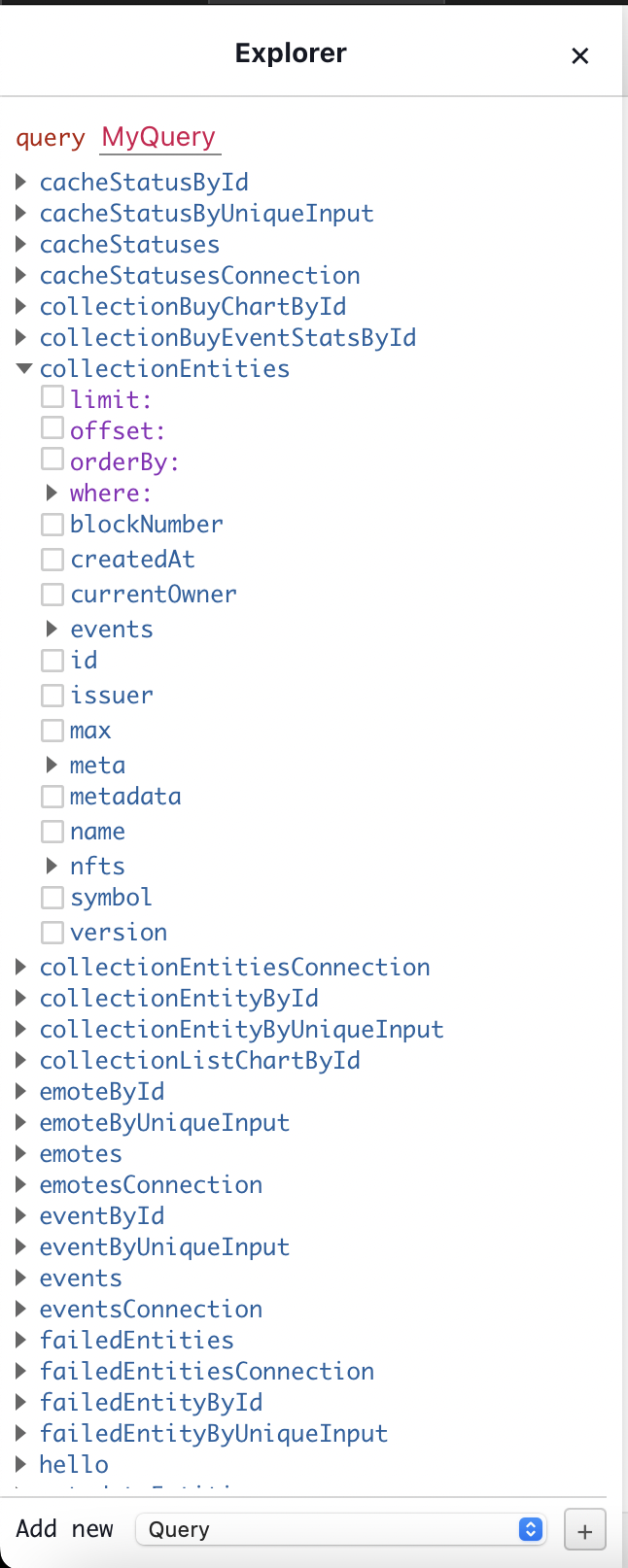
If you check off any boxes, you can see how the playground automatically adds it to your query!
You don't need to type anything unless there's a field that you'd like to specify like this:
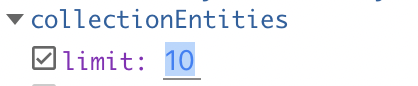
Inside your chosen query, you'll see some "➤" signs. These are the possible SUBQUERIES (query inside of a query) along with their own variables that can be passed into your main query.
They are either blue or purple. Purple color-coded names are parameters meant to go right after your query and blue color-coded names are variables meant to go in the body of your subquery.
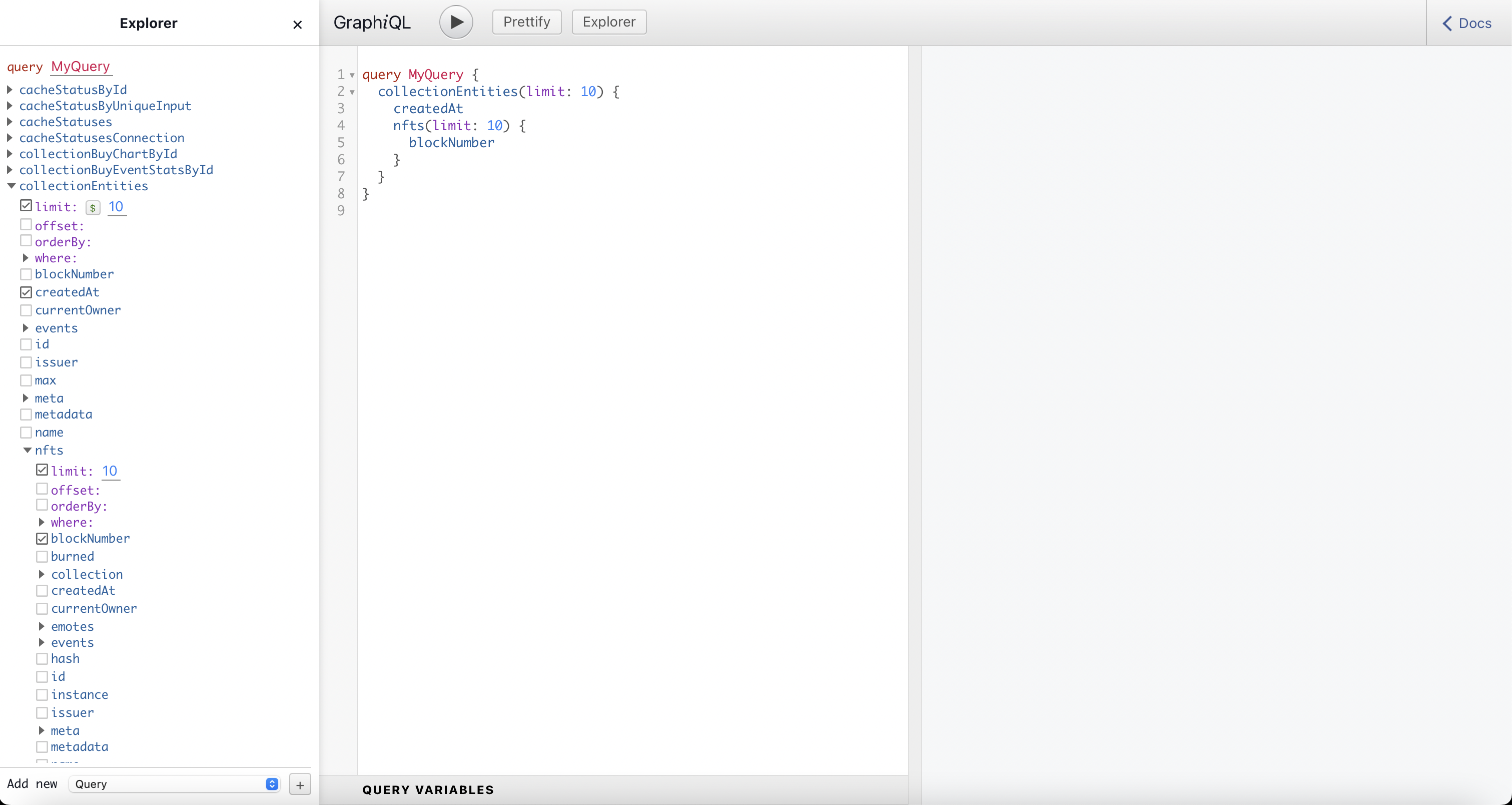
Lastly, if you want to manually pass something in through a query variable, you will see a $ next to a field input.

This just means that your query will be replacing every one of your $ + variables with the query variable you specify.
Query variables will be passed through the "Query Variables" box in the bottom: 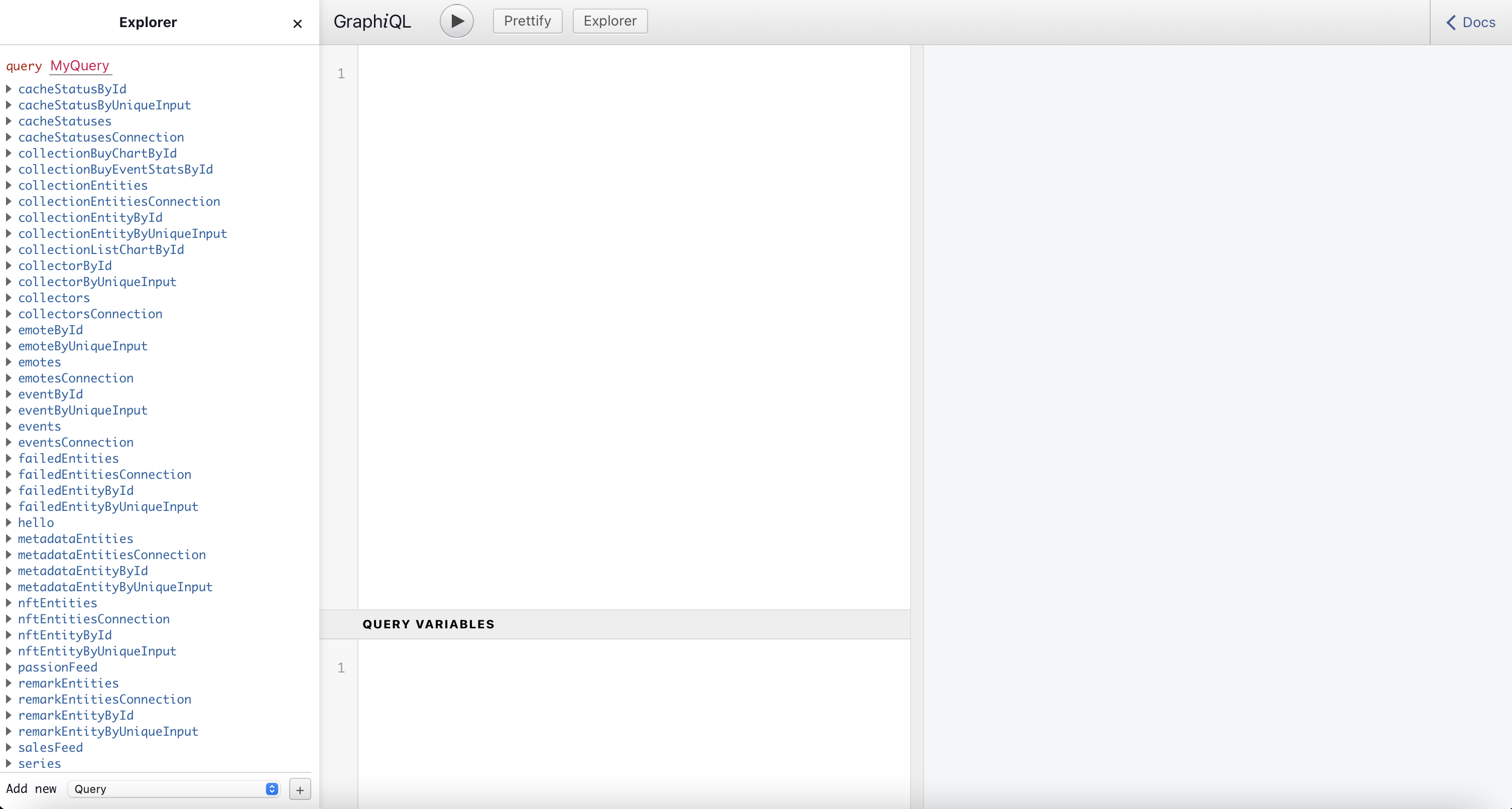
We'll see it in our upcoming example.
Example 1
Let's say you want to want to fetch the first 5 NFTs where the given account is the issuer but not the current owner.
Let's break down this task:
- Here we would use the nftEntities query, because we plan on querying data from more than one NFT
- We'll use
limitto specify the amount of entities we want - We'll use
whereto filter our results - The "given account" will be the account that is passed in from us in the "query variables" input, therefore we would have to use the $ sign to tell our query to replace that value with our input
- We'll use
issuer_eqsince we're looking for NFTs where the given account IS EQUAL to the issuer - We'll use
currentOwner_not_eqsince we're also looking for NFTs where the given account is NOT the current owner
NOTE: If you went through our introduction article, you know that SubSquid uses 'where' to filter our parameters and 'limit' to cap the amount of entities it'll go through. SubQuery as it uses the keyword 'filter' and 'first' instead.
After you've selected those parameters, you'll see something like this:

We've spoken about query variables earlier on, this is where it comes into play.

As you can see, the only available query parameters you can specify are the ones you added a $ to.
As for how you'll format your query paramters, you can look at line 1.

$issuer_eq: String = "" tells you that the query variable that will be assigned to issuer_eq will be a String that has to be inside quotation marks "". That will be specified for every query parameter you decide to choose in the future. If the parameter has an exclamation point at the end (i.e $issuer_eq: String!), it means the parameter is REQUIRED.
Here, we've initialized our parameters
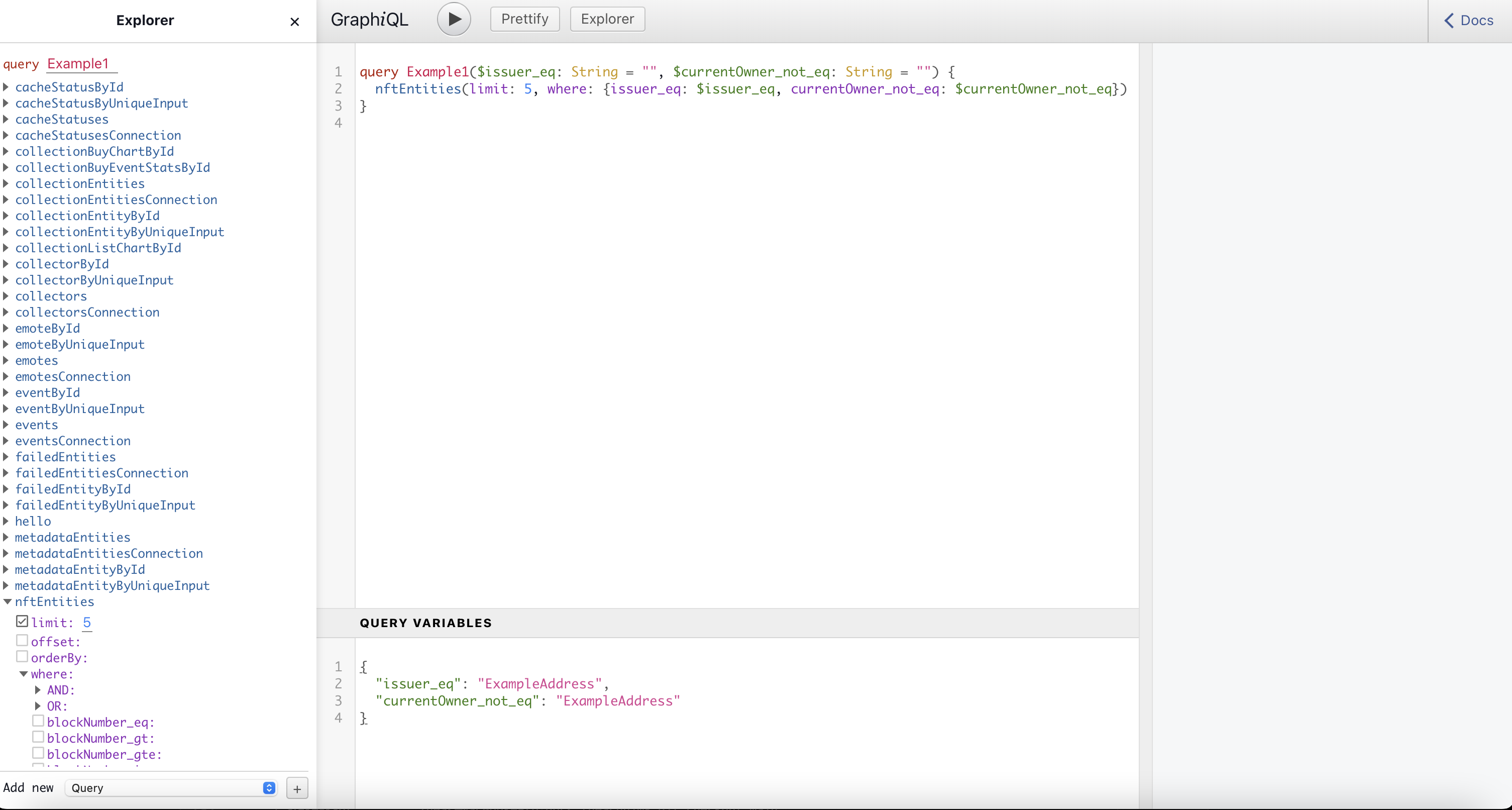
Once you run it, you'll see data pop up on the far right!

"ExampleAddress" is NOT a real address, therefore there isn't any data that our query can fetch.